# Connecting Devices to the Network
Get directions for connecting common devices to the network.
Devices with Instructions:
- Mobile Phones
- [Android Phones](https://support.hsr-bsa.org/link/12#bkmrk-android-phones "Android Phones")
- [iPhones](https://support.hsr-bsa.org/link/12#bkmrk-iphones "iPhones")
- Computers
- [Windows Computers](https://support.hsr-bsa.org/link/12#bkmrk-windows-computers "Windows Computers")
- [Apple Computers](https://support.hsr-bsa.org/link/12#bkmrk-apple-computers "Apple Computers")
- Videogame Devices
- [Nintendo Switch](https://support.hsr-bsa.org/link/12#bkmrk-nintendo-switch "Nintendo Switch")
- Other Devices
- [Roku](https://support.hsr-bsa.org/link/12#bkmrk-other-devices "Other Devices")
#### Android Phones
To connect an Android phone to the HSR Guest WiFi:
1. Ensure you are in an area of camp that has Wifi available.
2. Go to the **settings menu** and **select WiFi** (due to differences in menu options from manufacturer to manufacturer, if you need further assistance finding this menu, you will need to refer to your device manufacture's documentation and support).
3. Turn on/enable the WiFi if it is not already enabled.
4. Select the wireless **network called** **"Horseshoe Scout Reservation"**.
#### iPhones
To connect an iPhone to the HSR Guest WiFi:
1. From your Home screen, go to **Settings** > **WiFi**
2. Turn on WiFi. Your device will automatically search for available WiFi networks
3. Select the wireless **network called** **"Horseshoe Scout Reservation"**.
#### Windows Computers
To connect a Windows device to the HSR Guest WiFi:
1. In task tray (located in the bottom right corner of task bar, near the clock), select the WiFi/network icon.
2. In the list of available wireless networks, select the wireless **network called** **"Horseshoe Scout Reservation"**.
#### Apple Computers
To connect an Apple Mac or MacBook to the HSR Guest WiFi:
1. Click the **WiFi icon**  in the menu bar. (If you don't see the WiFi icon  in the menu bar, choose Apple menu > System Preferences, then click Network. Select WiFi in the sidebar, then select ”Show WiFi status in menu bar.”)
2. Make sure WiFi is turned on (the slider is blue)
3. In the list of available wireless networks, select the wireless **network called** **"Horseshoe Scout Reservation"**. [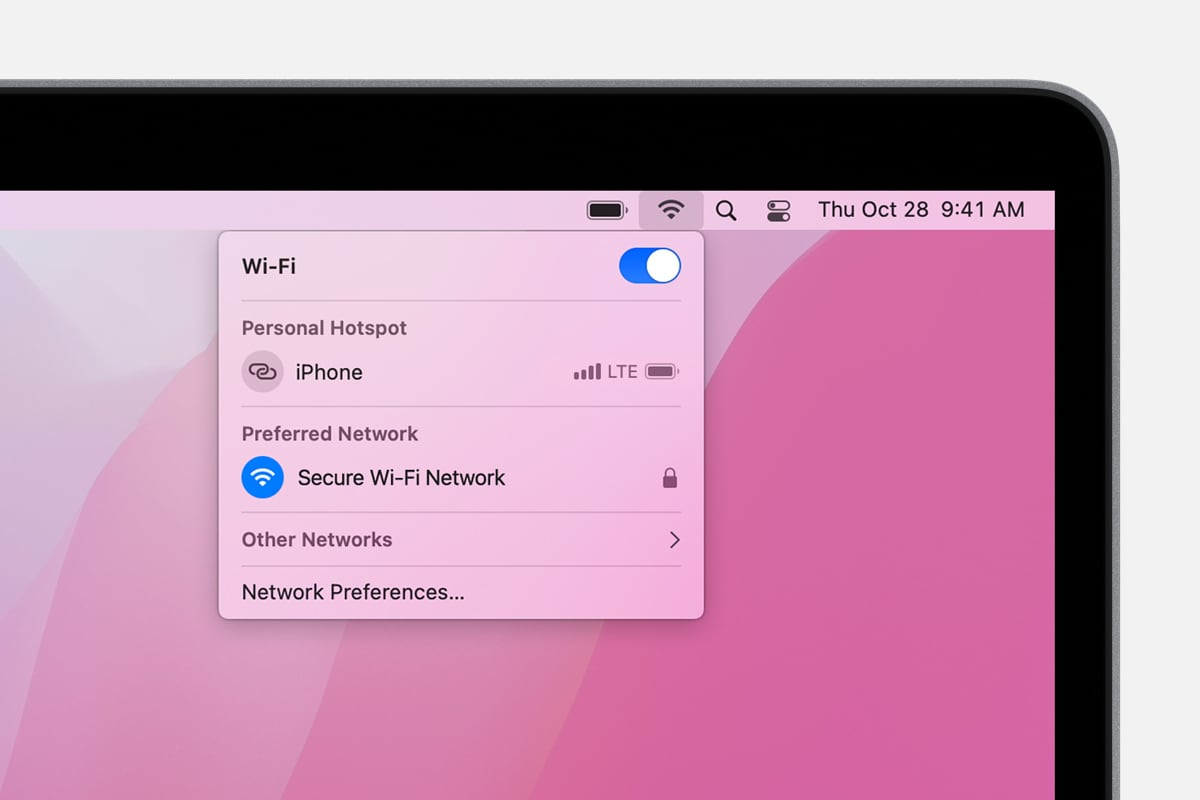](https://support.hsr-bsa.org/uploads/images/gallery/2022-04/bklfM1tuoutW2mKw-image-1649962752852.png)
#### Nintendo Switch
1. Select "**Settings**” in the main menu.
2. Under Settings, on the left-hand menu, **select “Internet”** and navigate to **“Internet settings”**. The Switch will start to search for a network.
3. In the list of available wireless networks, select the wireless **network called** **"Horseshoe Scout Reservation"**.
#### Other Devices
If specific instructions for your device were not listed above, start by ensuring your device is compatible with the HSR network by visiting the "[Prerequisites and Supported Devices"](https://support.hsr-bsa.org/books/guest-support/page/prerequisites-and-supported-devices "Prerequisites and Supported Devices") page.
If your device meets the listed requirements, please refer to your device manufacture's instructions for connecting your device to a wifi network with captive portal. For your convenience, links to the support page for a few common devices are listed below.
- [Roku](https://support.roku.com/article/215058118 "How to use Hotel and Dorm Connect to connect to the internet")