# Guest Support
# Wifi Support
Get help connecting to the wifi.
# Prerequisites and Supported Devices
Where is WiFi available? What devices are supported?
### Conditions of Use
The wireless network ("WiFi") is provided for the convenience of our guests. While we take great measures to ensure the consistent reliability and performance of the network, the network is provided as is and with no guarantees. In addition, use of this network is subject to the policies of the Chester County Council. Acceptable uses under these policies are summarized in the Acceptable User Policy ("AUP"), which will be displayed when first connecting to the network. All user are **required to accept this AUP** prior to being allowed on the network.
### Where is WiFi Available
WiFi is available in most (but not all) building around both Camp Horseshoe and Camp Ware.
For a more precise list and maps of WiFi locations, visit the [Where is WiFi Available FAQ page](https://support.hsr-bsa.org/books/faqs/page/where-is-wifi-available "Where is WiFi available?").
### Compatible Devices
If your device is not listed below, refer to the "Device Requirements" section near the bottom of this page to manually determine if your device is likely compatible or incompatible.
#### Known Compatible Devices
Computers:
- Windows 10 Devices
- Windows 11 Devices
- Apple Mac devices (Running MacOS 10.12 \[nickname Sierra\] or above)
- Chromebooks
Mobile Devices:
- iPhone (5C or newer, running iOS 10.3.3 and above)
- iPad (4th gen or newer, running iPadOS 10.3.3 and above)
- Android (OS version 7.0 \[nickname Nougat\] and above)
Videogame Devices:
- PS4 and newer
- XboxOne and newer
- Nintendo Switch
Media Devices:
- Roku (limited to devices which are still receiving manufacturer updates and support)
- FireTV
#### Known Incompatible Devices
Computers:
- Windows XP, Windows 7, and Windows 8 computers
Videogame Devices:
- Nintendo 3DS
Media Devices:
- Chromecast
### Device Requirements
#### Wireless Standards
There exist multiple versions/revisions of "WiFi". Below are the versions that are and are not supported on the HSR network.
##### Compatible Standards
- 802.11**n** (Wifi 4)
- 802.11**ac** (Wifi 5)
- 802.11**ax** (Wifi 6)
##### Incompatible Standards
- 802.11b (Wifi 1)
- 802.11a (Wifi 2)
- 802.11g (Wifi 3)
#### Captive Portal
A captive portal is a webpage used to sign into a wired or wireless network. You have likely encountered a captive portal when connecting to a hotel or coffee shop network and you needed to agree to terms and conditions.
The HSR network utilizes a captive portal to display the acceptable use policies and control access to different network resources. Generally speaking, **any device with a web-browser should be compatible** with the captive portal.
# Connecting Devices to the Network
Get directions for connecting common devices to the network.
Devices with Instructions:
- Mobile Phones
- [Android Phones](https://support.hsr-bsa.org/link/12#bkmrk-android-phones "Android Phones")
- [iPhones](https://support.hsr-bsa.org/link/12#bkmrk-iphones "iPhones")
- Computers
- [Windows Computers](https://support.hsr-bsa.org/link/12#bkmrk-windows-computers "Windows Computers")
- [Apple Computers](https://support.hsr-bsa.org/link/12#bkmrk-apple-computers "Apple Computers")
- Videogame Devices
- [Nintendo Switch](https://support.hsr-bsa.org/link/12#bkmrk-nintendo-switch "Nintendo Switch")
- Other Devices
- [Roku](https://support.hsr-bsa.org/link/12#bkmrk-other-devices "Other Devices")
#### Android Phones
To connect an Android phone to the HSR Guest WiFi:
1. Ensure you are in an area of camp that has Wifi available.
2. Go to the **settings menu** and **select WiFi** (due to differences in menu options from manufacturer to manufacturer, if you need further assistance finding this menu, you will need to refer to your device manufacture's documentation and support).
3. Turn on/enable the WiFi if it is not already enabled.
4. Select the wireless **network called** **"Horseshoe Scout Reservation"**.
#### iPhones
To connect an iPhone to the HSR Guest WiFi:
1. From your Home screen, go to **Settings** > **WiFi**
2. Turn on WiFi. Your device will automatically search for available WiFi networks
3. Select the wireless **network called** **"Horseshoe Scout Reservation"**.
#### Windows Computers
To connect a Windows device to the HSR Guest WiFi:
1. In task tray (located in the bottom right corner of task bar, near the clock), select the WiFi/network icon.
2. In the list of available wireless networks, select the wireless **network called** **"Horseshoe Scout Reservation"**.
#### Apple Computers
To connect an Apple Mac or MacBook to the HSR Guest WiFi:
1. Click the **WiFi icon**  in the menu bar. (If you don't see the WiFi icon  in the menu bar, choose Apple menu > System Preferences, then click Network. Select WiFi in the sidebar, then select ”Show WiFi status in menu bar.”)
2. Make sure WiFi is turned on (the slider is blue)
3. In the list of available wireless networks, select the wireless **network called** **"Horseshoe Scout Reservation"**. [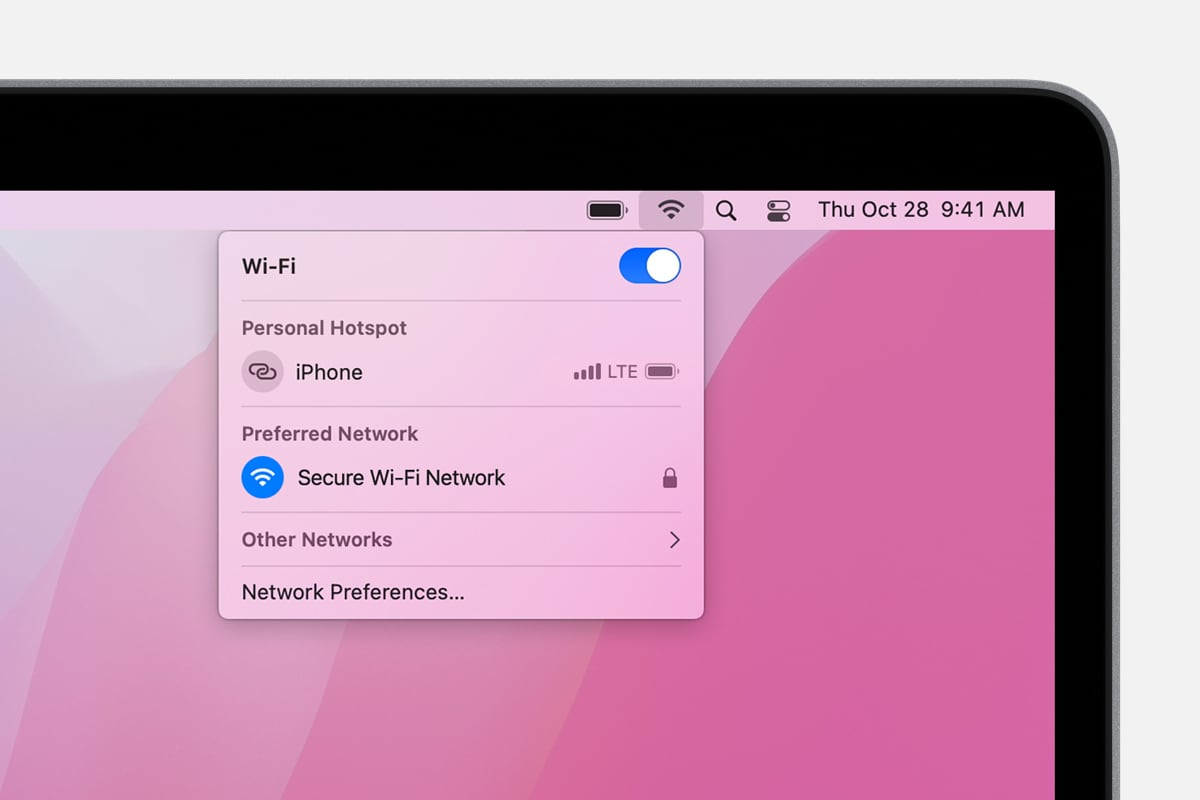](https://support.hsr-bsa.org/uploads/images/gallery/2022-04/bklfM1tuoutW2mKw-image-1649962752852.png)
#### Nintendo Switch
1. Select "**Settings**” in the main menu.
2. Under Settings, on the left-hand menu, **select “Internet”** and navigate to **“Internet settings”**. The Switch will start to search for a network.
3. In the list of available wireless networks, select the wireless **network called** **"Horseshoe Scout Reservation"**.
#### Other Devices
If specific instructions for your device were not listed above, start by ensuring your device is compatible with the HSR network by visiting the "[Prerequisites and Supported Devices"](https://support.hsr-bsa.org/books/guest-support/page/prerequisites-and-supported-devices "Prerequisites and Supported Devices") page.
If your device meets the listed requirements, please refer to your device manufacture's instructions for connecting your device to a wifi network with captive portal. For your convenience, links to the support page for a few common devices are listed below.
- [Roku](https://support.roku.com/article/215058118 "How to use Hotel and Dorm Connect to connect to the internet")
# Common Problems and Solutions (Guest)
Ran into an issue connecting? Here are some common problems and solutions.
#### What's the WiFi password?
There is **no password required** to connect to the guest WiFi. Make sure you are attempting to connect to the correct WiFi network, which is **"Horseshoe Scout Reservation"**. Once connected to the correct network, refer to the instructions for "[navigating the captive portal](https://support.hsr-bsa.org/books/guest-support/page/navigating-the-captive-portal-guest "Navigating the Captive Portal (Guest)")".
#### I haven't received the notification/pop-up to sign in.
This problem often occurs if your device was at one point connected to the old HSR network that did not require a sign-in. The easiest solution is to have your device **forget the "Horseshoe Scout Reservation" network** and then try "[connecting to the network](https://support.hsr-bsa.org/books/guest-support/page/connecting-devices-to-the-network "Connecting Devices to the Network")" again. For specific instructions instructions on how to forget a network, refer to the links below:
- [Apple devices - how to forget a network](https://support.apple.com/en-us/HT208941 "How to forget a Wi-Fi network on your iPhone, iPad, iPod touch, or Mac")
- Android devices - Go to settings, select WiFi under "network and internet", select "saved networks", select "Horseshoe Scout Reservation", select forget.
- [Windows computers - how to forget a network](https://support.lenovo.com/us/en/solutions/ht500422-how-to-remove-a-saved-wi-fi-network-under-windows-78110 "How to remove a saved Wi-Fi network under Windows 10, 8.1, and 7")
#### The captive portal told me that my role could not be assigned.
Once the captive portal has assigned you a role, your device should automatically disconnect from the network and then reconnect using your newly assigned role. However, some devices comply with these automatic disconnect/reconnect instructions better than others. If you are receiving this error, your device has simply not followed these instructions well.
To resolve the issue manually, you will need to **turn off your WiFi, wait 5-10 seconds, and then turn your WiFi back on**. Your device should automatically attempt to reconnect to the network, and should do so with your new role. Once your device has reconnected, you should now have internet access.
# Guest Printing
### Supported Devices
Guest printing is supported on the following types of devices:
- Desktop/Laptops:
- Windows 10/11
- Mac
- ChromeOS
- Mobile:
- iPhone
- iPad
- Android
### Getting Started
Make sure you are connected to the "Horseshoe Scout Reservation" WiFi network. (If you are staff, you might be connected to the "HSR Staff" WiFi network - this is fine and you may continue with these directions.)
Go to [http://print.hsr-bsa.org](http://print.hsr-bsa.org)
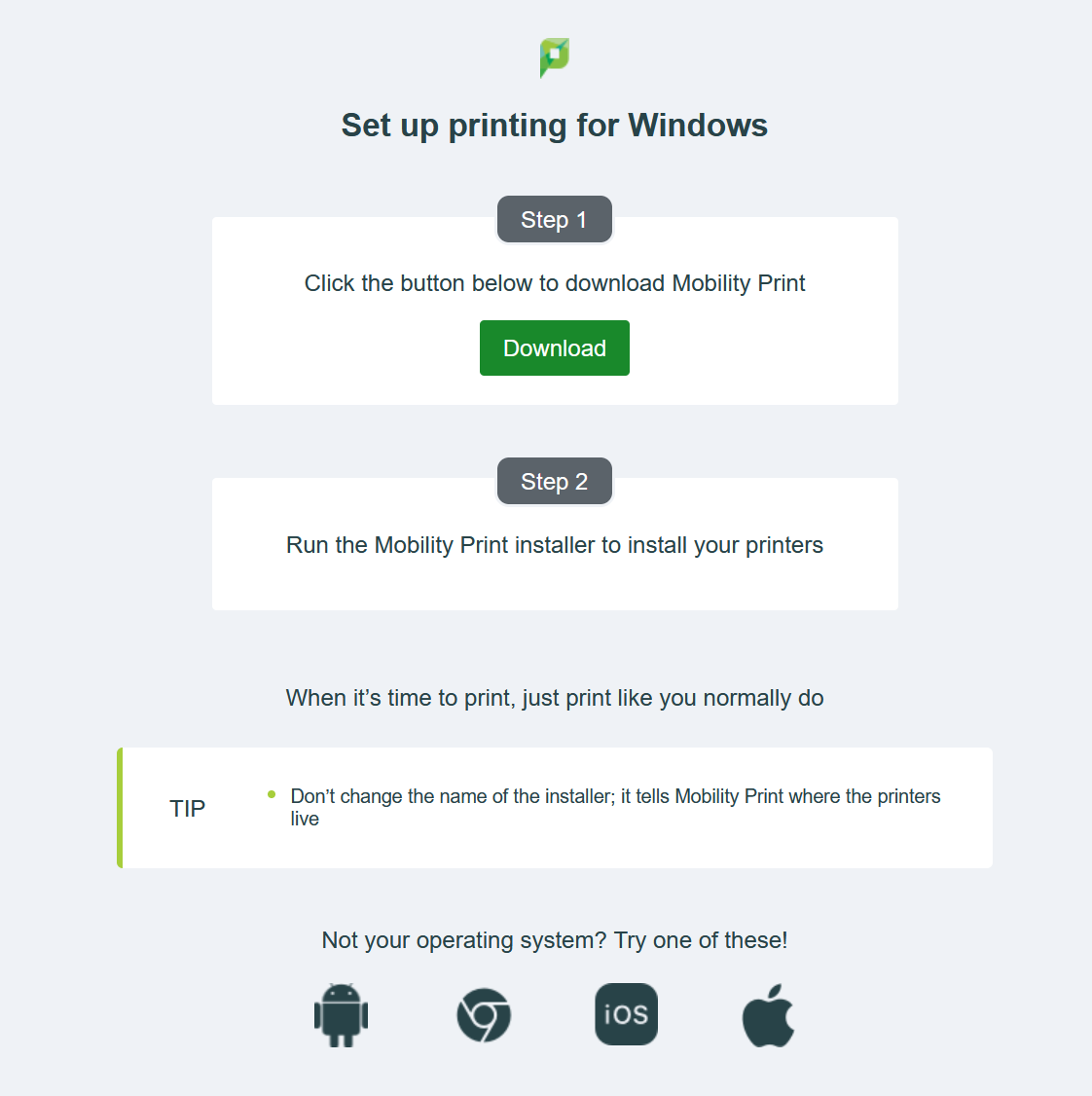
You should be taken to a page that looks similar to the following, but custom to the type of device your running (windows, mac, etc.):
[](https://support.hsr-bsa.org/uploads/images/gallery/2023-05/HDqHw3AQ7VuvLIGn-image.png)
If you do not see a page similar to the above, or receive an error, try using this alternate link: [http://dserv2.hsr-bsa.org:9163/setup](http://dserv2.hsr-bsa.org:9163/setup)
Once you see the screen above, follow the instruction presented for your device.